
How to Use Resume Builder Free - Create and Download Your Resume as a PDF
Create a resume in English with Resume Builder Free. Add your photo, education, skills, and experience, preview your resume, and download a free A4 PDF.
By Biodata Maker Free Editorial Team
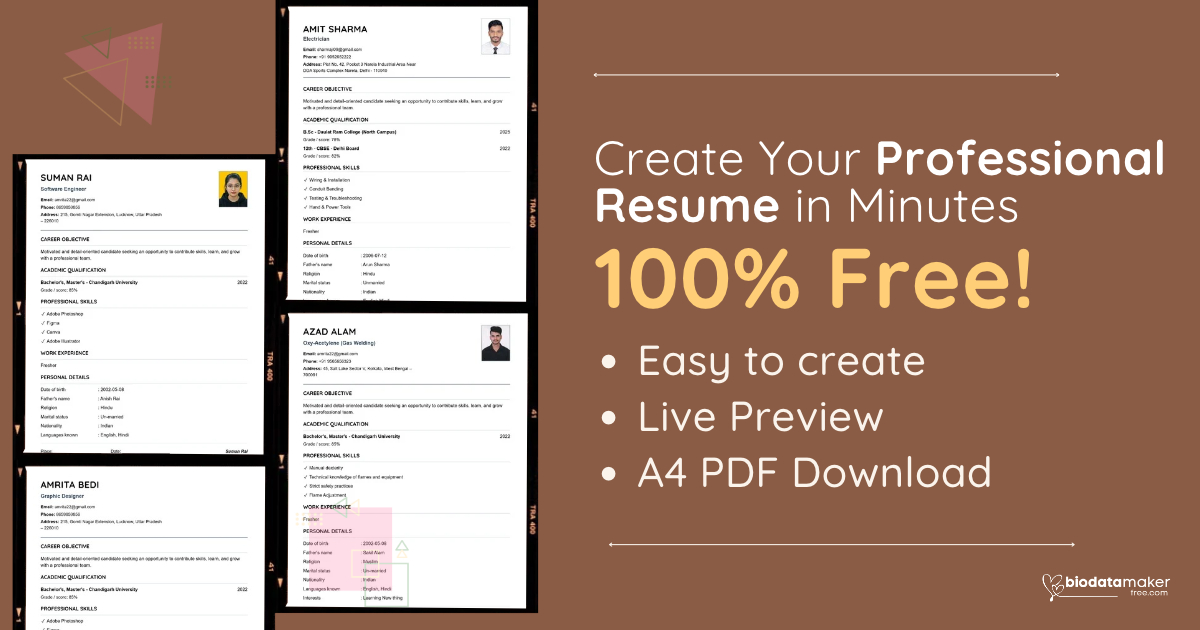
Need a resume but unsure how to start? Resume Builder Free helps you organize your contact information, education, skills, and work history into a clean resume. Fill in the form, check the live preview, and download a print-ready PDF—all for free.
The builder uses a simple five-step form. You can make a resume as a fresher, add work experience, include a profile photo, and add optional passport or personal details. Here’s how each step works.
Why Use Resume Builder Free?
Making a resume from a blank document can take time. You may need to adjust headings, spacing, and page breaks before it is ready to share. Resume Builder Free provides a structured form and a live preview, so you can focus on your information and see how it looks as you go.
You can use it to:
- Create a resume in English
- Add a profile photo if you want one
- Enter education details and add multiple qualifications
- List up to 10 skills
- Add work experience or mark yourself as a fresher
- Include optional passport and personal details
- Preview the resume while you fill in the form
- Download a print-ready A4 PDF at no cost
How Many Steps Does It Take?
The builder has five steps:
- Contact
- Education
- Skills & Experience
- Passport Details
- Personal Details
Use Back and Next to move through the form, or select a step from the section navigation. Passport information is optional, and you can skip that step.
How to Create a Resume Step by Step
Step 1: Add your contact details
Enter your full name, job title, email address, phone number, and address. You can also write a short career objective that explains the type of role you’re seeking.
A profile photo is optional. To add one, choose a JPG, PNG, or WebP image smaller than 5 MB. The builder checks and processes the image before placing it in the resume preview. You can change the photo by choosing another image.
Step 2: Add your education
Enter your qualification, school or college, year, and grade or score. The grade or score is optional.
If you have more than one qualification, select Add education to create another entry. You can remove an entry if you no longer need it.
Step 3: Add skills and experience
Add skills that are relevant to the jobs you want. You can list up to 10 skills, and remove or edit them as needed.
If you have not worked in a job before, select I am a fresher. The resume will show you as a fresher. If you have work experience, clear that option and enter your job title, company, duration, and key responsibilities. Use Add experience to include more than one role.
Step 4: Add passport details, if needed
Passport details are optional. Turn on Enable passport details to enter a passport number, issue date, expiry date, and place of issue. Leave the option off or use Skip if you don’t want to include this information.
Only add passport information if it is relevant and you are comfortable including it in your resume.
Step 5: Add personal details
The final step includes optional fields for date of birth, father’s name, religion, marital status, nationality, languages known, and interests.
You do not have to fill in every field. Choose details that are appropriate for the role and that you are comfortable sharing with employers.
Review Your Resume in the Live Preview
As you enter information, the preview shows how your resume is arranged. Check your name, contact details, photo, education, skills, and experience. Correct spelling and make sure the information is current.
The preview is formatted for A4 pages. If your resume has enough information to span more than one page, review each page before downloading.
How to Download Your Resume as a PDF
When your resume is ready, select Download PDF. The builder prepares the document in your browser and saves it as an A4 PDF. Open the downloaded file to check the layout before sending it to an employer.
To print it, open the PDF and use your device’s print command. To share it, attach the PDF to an email or message.
The builder saves a draft in your browser session, which can help if you move between steps. Use Reset only when you want to clear the resume details and start again.
Is Resume Builder Free to Use?
Yes. You can create your resume and download the PDF for free. There is no charge for using the resume form or generating the PDF.
Tips for a Clear, Professional Resume
- Use a job title that describes the role you want.
- Keep your career objective short and specific.
- Add education and skills that are relevant to the position.
- Describe work responsibilities clearly.
- Check your email address and phone number carefully.
- Use a clear photo only if you want one.
- Include optional personal or passport details only when appropriate.
- Review the entire PDF before sharing it.
Frequently Asked Questions
How many steps are in Resume Builder Free?
There are five steps: Contact, Education, Skills & Experience, Passport Details, and Personal Details. Passport details are optional, and you can skip that step.
Can I create a resume as a fresher?
Yes. Select I am a fresher in the Skills & Experience step. You can still add your education and skills.
Can I add a photo to my resume?
Yes. Adding a photo is optional. The builder accepts JPG, PNG, and WebP images smaller than 5 MB.
How many skills can I add?
You can add up to 10 skills. Choose the ones most relevant to the jobs you are applying for.
Can I add more than one education or work entry?
Yes. Use Add education to add qualifications and Add experience to add work history.
What format does the resume download in?
The builder downloads your resume as a print-ready A4 PDF. You can open the PDF to print it or attach it to an email or message.
Is Resume Builder Free available in languages other than English?
The resume builder’s form is in English. The Languages known field lets you list the languages you speak.
Create Your Resume for Free
Resume Builder Free guides you through five steps, shows a live preview, and lets you download your resume as a PDF. Add the information that fits your experience, review every page, and save a copy before sharing it.
Start creating your resume with Resume Builder Free.